
If your Windows 11 PC feels slow then you are not alone. A computer can become slower over time for many reasons. Too many apps may start with Windows. Your storage may be almost full. You may have too many programs running in the background. Sometimes the real problem is old hardware.
The good news is that you can often speed up Windows 11 without buying a new computer.The best approach is not to change every setting you can find. First find what is making your PC slow. Then fix that specific problem.
Quick Answer
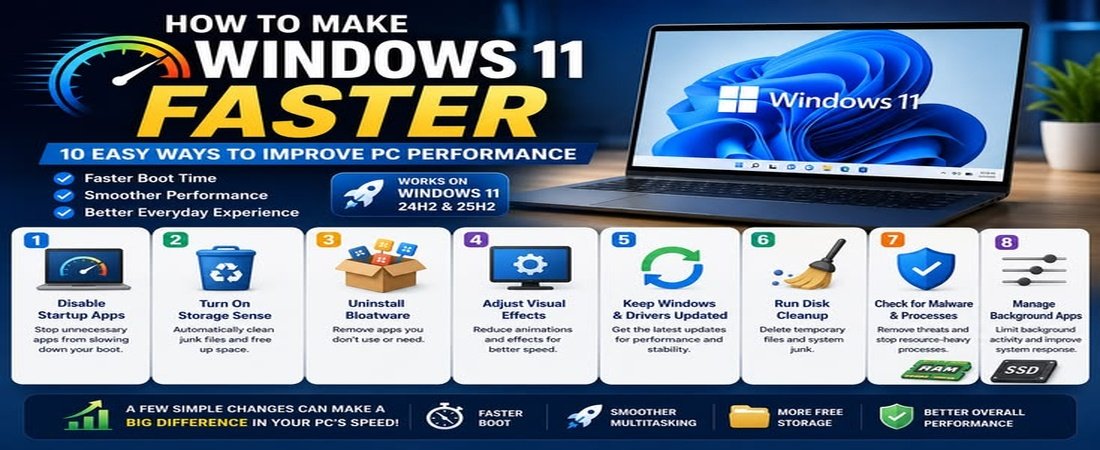
The easiest way to speed up Windows 11 is to check Task Manager first. Look at CPU memory and disk usage. Then disable startup apps that you do not need. Free up storage space and remove programs you no longer use. You can also reduce visual effects and use Best performance power mode when needed.
If your PC is still slow after these steps then your hardware may be the main issue. An old HDD or limited RAM can make Windows feel slow even after software cleanup.
Why Is Windows 11 Running Slow?
There is no single reason for a slow Windows 11 PC.Some computers become slow because too many programs open when Windows starts. Others have very little free storage. A computer with limited RAM may slow down when several apps are open at the same time.
An old hard drive can also make Windows feel slow. Heat can be another reason. If your PC becomes much slower after running games or heavy programs for a while then overheating may be worth checking.
Microsoft also lists limited storage and too many startup apps among common reasons for poor Windows performance.So before you try random tweaks it is better to find the actual problem.
1. Check Task Manager First
Task Manager is one of the best places to start when you want to speed up Windows 11.
Press Ctrl + Shift + Esc to open it.
Look at the Performance section and check:
- CPU
- Memory
- Disk
- GPU
You can also open the Processes section and see which apps are using the most resources.For example if memory usage is very high while many apps are open then RAM may be the problem. If disk usage stays very high then check which program is using the drive.
Do not close processes just because you do not recognize their names. Some processes are part of Windows.Microsoft describes Task Manager as a system monitor and startup manager that can show CPU load memory use and disk activity.
2. Disable Unnecessary Startup Apps
Too many startup apps can make your PC take longer to become ready after you sign in. This action can help you speed up windows 11
Open:
Settings → Apps → Startup
You can also manage startup apps through Task Manager.
Look at the list and think about which programs you really need when Windows starts.
For example if a music app or chat app opens every time you turn on your PC but you rarely use it then you may not need it running at startup.Do not disable everything. Some programs may be useful or important for your hardware.Microsoft says startup apps can increase startup time and background activity.
3. Free Up Storage Space
Low storage can affect Windows performance. This step can also help to speed up windows 11
Open:
Settings → System → Storage
Here you can see what is taking up space on your drive.Look for old files and temporary files that you no longer need. Windows also includes Storage Sense which can help remove temporary files automatically.
Do not delete files simply because you do not recognize them. Take a moment to check what they are first.Freeing storage is one of the simple ways to speed up Windows 11 when your drive is running low on space. Microsoft recommends Storage Sense and other built in cleanup tools for this purpose.
4. Remove Apps You Do Not Use
One of the best way to speed up windows 11
Go to:
Settings → Apps → Installed apps
Look through your installed programs.You may find games you no longer play. Trial software you forgot about or apps you installed for a one time task.
Removing unused apps can free storage. Some applications can also run background processes.You do not need to remove every app that you do not use every day. Just focus on programs you know you do not need.
5. Reduce Visual Effects
Windows 11 has animations and transparency effects that make the interface look nice.These effects are normally fine on a modern PC. But on an older or weaker computer reducing them may make Windows feel more responsive.
Open Windows Settings and search for Visual effects.
You can turn off:
- Transparency effects
- Animation effects
Microsoft provides these options in Windows 11.This will not turn an old computer into a powerful one. It is simply another small change that may help a weaker PC feel more responsive.
6. Try Best Performance Power Mode
Windows 11 includes different power modes.
Go to:
Settings → System → Power & battery
Under Power mode you may see:
- Best power efficiency
- Balanced
- Best performance
Best performance can be useful when you need more performance from the PC. Microsoft also warns that it can use more power and may make a laptop warmer.
For a laptop you may prefer Balanced mode during normal use. When you are connected to power and running a demanding task you can try Best performance.
7. Keep Windows Updated
Open:
Settings → Windows Update
Then check for available updates.Windows updates can include security fixes and bug fixes. They are not a magic way to make every computer faster but keeping Windows updated is still good system maintenance.If your PC has been waiting for a restart then restart it when you have finished your work.
8. Check Your Drivers
Drivers help Windows communicate with your hardware.If you have graphics problems or problems with a specific device then checking for driver updates can help.
For graphics drivers you should normally use Windows Update or the official website of your hardware manufacturer.Avoid installing random driver update programs that promise to update every driver on your PC. You do not need extra software just to try to speed up Windows 11.
9. Close Apps You Are Not Using
Running many programs at the same time can use a lot of RAM.This is especially noticeable on computers with limited memory.If you have finished using an application then close it. You can also use Task Manager to find programs that are using a large amount of memory.
For example running a browser with many tabs while using a video editor and several other large applications can put a lot of pressure on your system.Closing things you do not need is simple but it can help.
10. Check Background Apps
Some apps continue working even when you are not actively using them.Background activity is not always bad. Some apps need it for notifications and syncing.Still it is worth checking which applications are allowed to run in the background.
Focus on apps you recognize. Do not start disabling random Windows processes.This can help reduce unnecessary resource use and may improve the overall feel of your PC.
11. Scan Your PC for Malware
Malware can use system resources and cause other problems.If your PC suddenly becomes slow and you also notice strange popups unknown programs or unusual browser behavior then run a security scan.
Windows Security includes built in protection that you can use to check your system.Avoid installing several security programs at the same time. More security software does not automatically mean better performance.
12. Check If You Have an HDD or SSD
Your storage drive can make a big difference.An SSD is generally much faster than an old mechanical HDD for everyday tasks such as starting Windows and opening programs.
If your computer still uses an HDD then upgrading to an SSD may provide a much bigger improvement than changing small Windows settings.This is an important point because software tweaks cannot completely fix slow hardware.
13. Check for Overheating
Heat can also affect performance.If your PC works normally when you first start it but becomes slow after running demanding programs for some time then check the cooling system.Look for signs such as loud fans or a very hot laptop.
Make sure air vents are not blocked. Keep laptops on a hard flat surface when possible.If overheating continues then the cooling system may need attention.
14. Do Not Use Random Windows Tweaks
You may find guides telling you to disable dozens of Windows services or change registry settings.Be careful.
These changes can cause problems if you do not know what they do.You also do not need to disable important Windows services just to make your PC feel faster.Start with safe changes such as startup apps storage cleanup and checking resource usage.
15. Consider More RAM or an SSD
If your PC is still slow after basic cleanup then look at the hardware.More RAM can help if your computer regularly runs out of available memory while multitasking.
An SSD can help if Windows is running from an old HDD.If the CPU is very old or the computer struggles with your normal workload then it may simply be reaching the limits of its hardware.At that point spending hours changing Windows settings may not be worth it.
Quick Windows 11 Speed Checklist
Before you consider replacing your PC check these things:
- Check CPU usage
- Check memory usage
- Check disk usage
- Review startup apps
- Free up storage
- Remove unused apps
- Close apps you do not need
- Review background activity
- Reduce visual effects if needed
- Check Windows Update
- Check important drivers
- Run a malware scan
- Check whether you use an HDD or SSD
- Check for overheating
- Restart the PC and test it again
Common Mistakes to Avoid
One common mistake is disabling every startup app. Some programs may actually need to start with Windows.Another mistake is using registry hacks without understanding them.You should also avoid random PC booster programs. Windows already has many tools for checking and managing system performance.
Do not disable security features just to gain a small performance improvement.Most importantly do not change ten things at once. If you do that you will not know what actually helped.Change one or two things. Restart if needed. Test your PC and then continue.
Frequently Asked Questions
How can I speed up Windows 11?
Start with Task Manager. Check CPU memory and disk usage. Then review startup apps and storage. Remove unnecessary programs and reduce visual effects if your PC is struggling.
Why is my Windows 11 PC so slow?
It could be caused by too many startup apps low storage high memory use background programs malware overheating or old hardware.
Can I speed up Windows 11 without upgrading hardware?
Yes. Many PCs can benefit from cleaning up startup apps removing unused programs and freeing storage. But software changes cannot fix every hardware problem.
Does an SSD make Windows 11 faster?
Yes. Moving from an old HDD to an SSD can make booting and opening programs feel much faster.
Should I use Best performance mode?
It can help when you need maximum performance. On laptops it can use more battery and create more heat. Microsoft recommends matching power mode to what you are doing.
Should I disable Windows services?
No. Do not disable Windows services randomly. It is safer to start with normal performance settings and built in Windows tools.
Conclusion
Learning how to speed up Windows 11 does not mean changing every setting you can find.
Start by finding the real problem.Check Task Manager. Review startup apps. Free some storage and remove programs you no longer use. Then check updates background activity and visual effects.
If your PC still feels slow then look at the hardware.An old HDD may be holding the system back. Limited RAM may be causing problems when you multitask. Heat may also be reducing performance.
The most useful Windows optimization is usually the one that targets the actual problem.Find the bottleneck first. Fix it. Test the result. Then decide what to do next.