

If you have heard people talking about Google Gemini but are not sure where to start you are not alone. Gemini can answer questions, write content, work with images and files help with research and even assist with tasks across Googles apps.
The confusion is knowing what to ask and how to get useful answers.This guide explains how to use Gemini as a beginner. You will know how to access it write better prompts use files and images and make Gemini more useful for everyday operations.
What Is Google Gemini?
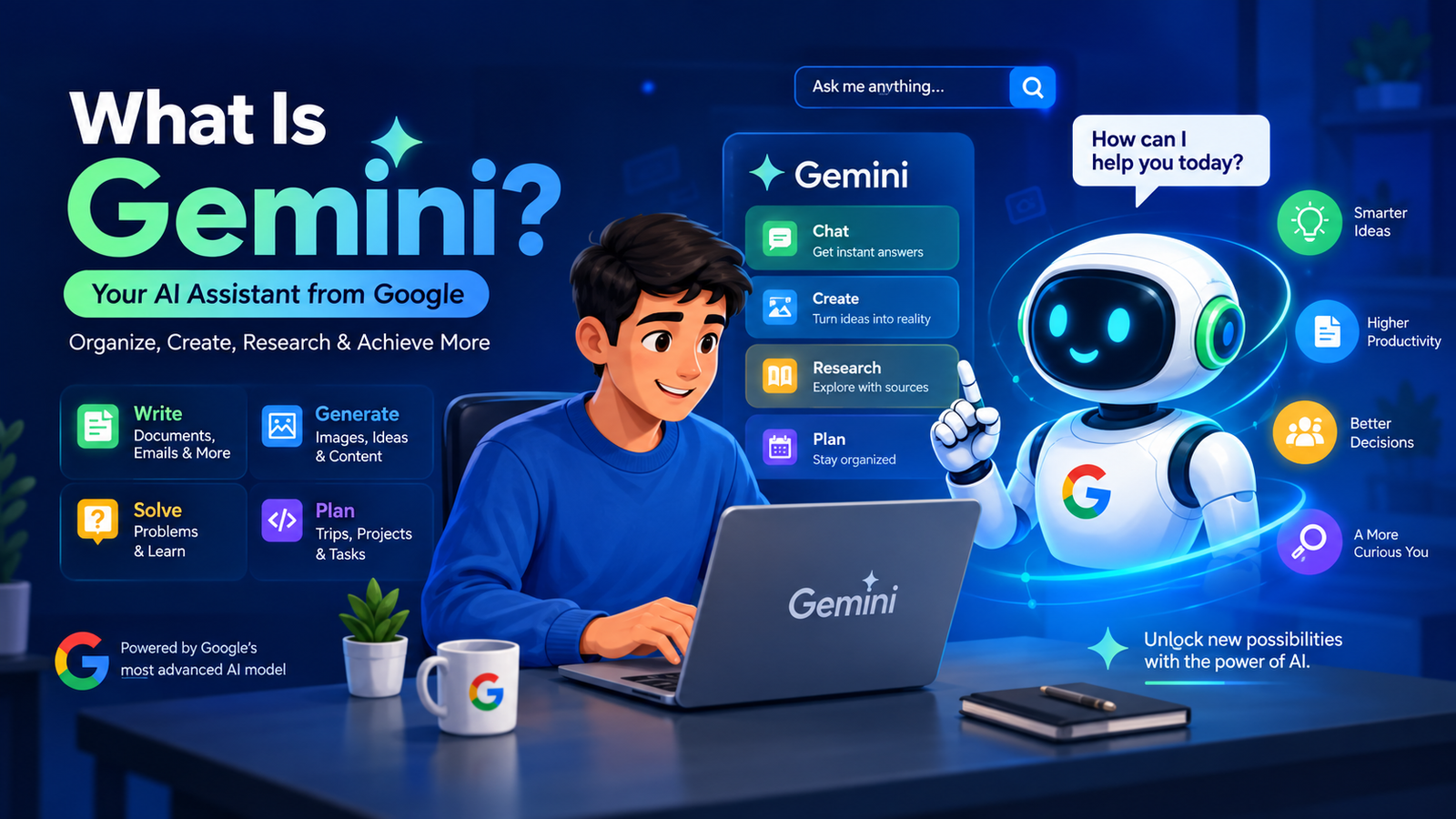
Google Gemini is Google’s generative AI assistant. You can use it to ask questions, create and rewrite content, understand information, brainstorm ideas and work with different types of content.Gemini is available through its web and mobile experiences. On android devices that are supported it can also work as AI assistant and help you while you are using other apps.
The important thing is that Gemini is not just like a search engine. You can have a proper conversation with it. If the first answer is not satisfactory you can explain what needs to change and continue from there.
How to Use Gemini for the First Time
Getting started is fairly simple.
1. Open Gemini
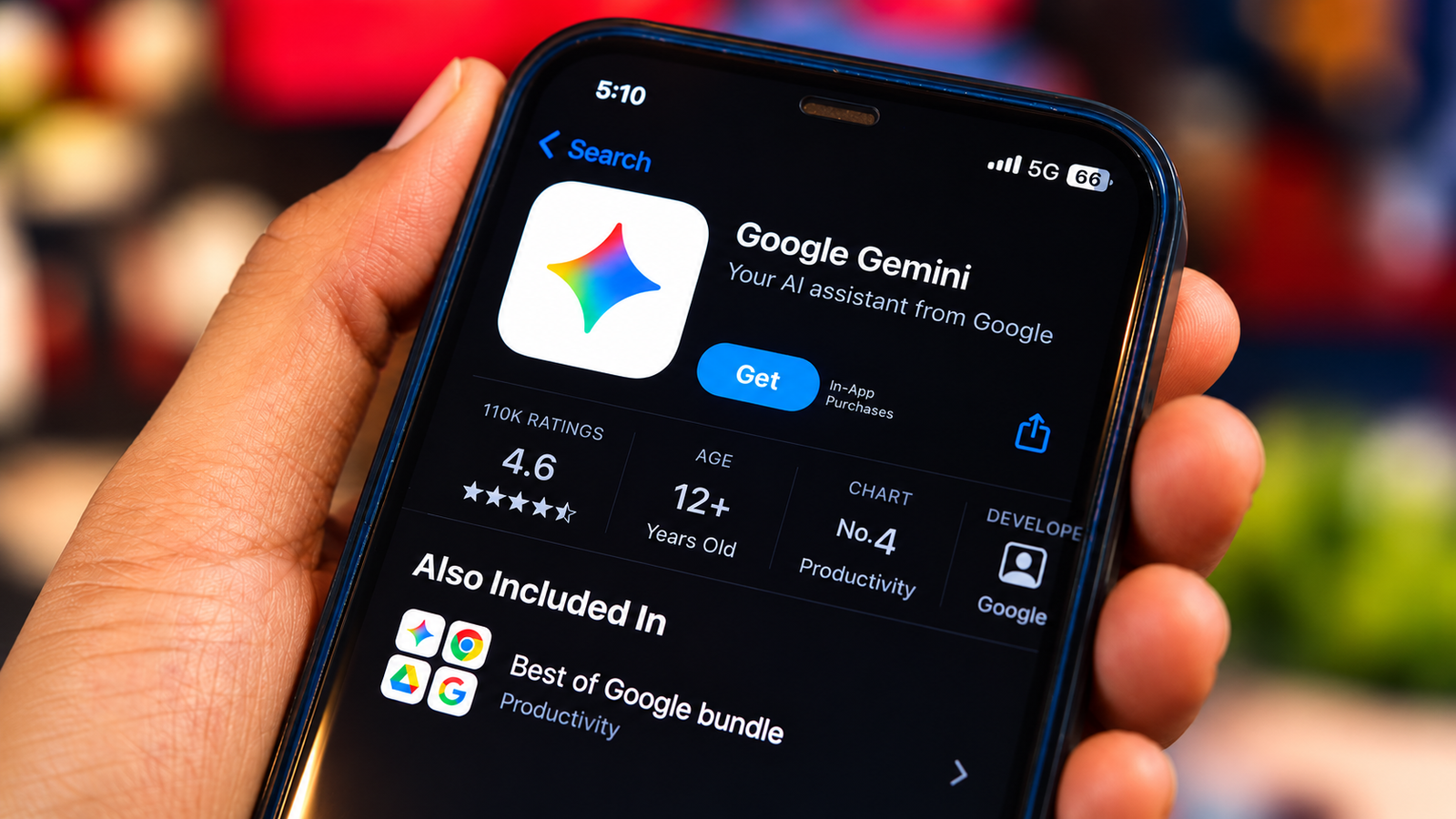
You can access Gemini through the Gemini website or the Gemini mobile app where available.On Android phones that support Gemini, you can also access it as an assistant. Google says users can activate Gemini by voice or touch on supported devices.
2. Start a conversation
Once Gemini is open you will see a prompt box. This is where you tell Gemini what you want.You can start with simple prompt like: Explain how compound interest works in simple words.
No need to learn special command. Write your request in normal language.
3. Ask a follow up question
No need to start from scratch every time. If Gemini explains compound interest you can ask: Give me a simple example using $1,000. You can then continue: Now explain it considering if I am 15 years old.
This conversational approach is the easiest ways to get better results.
How to Write Better Gemini Prompts
Your prompt can make a big difference.An unclear prompt just usually gives you a general answer.For example: Write an article about fitness.A better prompt gives Gemini more information: Write a 1,000 word article about home workouts for beginners. Use simple words.
Google also recommends giving Gemini useful context and specific details when writing prompts.A useful prompt normally tells Gemini four things:
What you want:
Tell it the task.
Who it is for:
Mention your audience when it matters.
How you want the result:
Tell Gemini whether you want a list, table, email, explanation or another format.
Important limits:
Mention the word count, tone or other requirements.You do not need to make every prompt long. Sometimes a short and clear request works better.
How to Use Gemini With Images and Files
One useful feature is the ability to work with more than plain text.Depending on your account and available features, you can add images or files to a conversation and ask Gemini questions about them. Google also supports image generation and editing in Gemini Apps.
For example you could upload image and ask: Tell me what is shown in this image. Or upload a document and ask: Give a summary of this article in 5 simple points.
Also you can give Gemini a more specific prompt: Read this document and list the main problems mentioned by the author. Try to keep every point under 30 words. The more specific you keep your request the easier it is for Gemini to understand what you actually need.
How to Use Gemini for Everyday Operations
There are many simple ways to use Gemini during a normal workday.
You can ask it to:
- Draft an email
- Rewrite a paragraph
- Summarize a long document
- Create a meeting agenda
- Brainstorm ideas
- Explain a complicated topic
- Create a checklist
- Organize information
- Help with coding
- Prepare questions for a meeting
For example: Turn these rough notes into a professional email. Your tone must be friendly and it must be under 150 words. Also You can ask Gemini to improve its response.If the email is too formal simply say: Make it natural and less formal.That is often easier than writing a completely new prompt.
How to Use Gemini for Research
Gemini also helps you understand a topic or make a research.For example you might ask: Explain the main causes of climate change .Then continue with: Give me the strongest arguments people make against this explanation.
For deeper research tasks, Google’s Gemini ecosystem includes Deep Research features designed for longer research workflows. Availability can depend on the product and plan you are using.Still, do not assume every answer is correct.
AI systems can make mistakes. Google itself warns users that Gemini may provide inaccurate information. Important claims should be checked against reliable sources before you use them in professional, academic or important decisions.
How to Use Gemini on Your Phone
The Gemini mobile experience can be useful when you do not want to sit at a computer.On supported Android devices, you can interact with Gemini using text or voice. You can also ask questions about images or content on your screen in supported situations.
Gemini Live makes voice conversations more natural. Google has continued adding features that allow users to talk through tasks and work with Gemini using voice.This can be useful when you are walking, driving as a passenger or simply do not want to type.
How to Use Gemini With Google Apps
One of the more useful parts of Gemini is its connection with Googles wider ecosystemDepending on availability and your account settings Gemini can work with services such as Gmail, Maps, Tasks and other connected apps. For example instead of only asking for a generic reminder idea you may be able to ask Gemini to help create a task or work with information from connected services.
Google also expands connected apps and services in Gemini. These integrations can be changed over time and may not be available in every country or account.
A Simple Formula for Better Gemini Results
If you are new to AI tools, remember this simple formula:
Task + Context + Format + Limits
For example: Create a weekly meal plan for a family of four. Your focus must be on simple meals. Present it as a table. The recipes must be affordable and the ingredients can be found easily. Now look this is much more useful than: Make a meal plan.
Also Gemini can help you to improve your prompt before you use it. This is helpful when you know what you want but you dont know how to explain it.
Common Mistakes While Using Gemini
A few mistakes can make Gemini less useful.
Being too vague
If your request is unclear the answer can be too general.
Giving no context
Gemini dont know your situation always. Explain what you are trying to accomplish.
Accepting the first answer
First response is not always the best one. Ask follow up questions and change requests.
Trusting every fact
Gemini can make errors. Always check important information before relying on it.
Asking for too many things at once
If a task is complicated break it into smaller steps. This can make the conversation easier for you to manage.
Gemini Tips for Beginners
If you are learning how to use Gemini start with everyday tasks instead of trying complicated prompts immediately.Try asking Gemini to explain something you do not understand. Ask it to rewrite an email. Give it an image and ask what it sees. Upload a document and ask for a summary.Once you become comfortable, start using more detailed prompts.
You can also explore features such as Gems. Google describes Gems as customized versions of Gemini that can follow specific instructions for repeat tasks. They can be useful when you regularly want Gemini to respond in a particular way.
Key Takeaways
Learning how to use Gemini does not require technical knowledge.
Start by opening Gemini and asking a clear question. Give it enough context to understand your goal. Use follow up questions when the first answer is not right. You can also work with supported images and files and use Gemini across parts of Googles ecosystem.
The biggest improvement usually comes from learning how to write better prompts.Most importantly, treat Gemini as an assistant rather than an unquestionable source of truth. Use it to save time, explore ideas and work through tasks, but check important information before you depend on it.
Frequently Asked Questions
Is Gemini free to use?
Gemini has free access options, but some features and capabilities can depend on your account location and google AI plan.
Can I use Gemini on my phone?
Yes. Gemini has mobile experiences and can also work as an assistant on supported Android devices.
Can Gemini analyze images?
Yes. Supported Gemini experiences allow users to add images and ask questions about them.
Can Gemini help with writing?
Yes. You can use Gemini to draft, rewrite, summarize and improve written content.
Is Gemini always accurate?
No. Gemini can make mistakes. Important information should be checked against reliable sources before you use it for important decisions.
What is the best way to use Gemini?
Start with a clear goal. Give Gemini enough context and explain what kind of result you want. If the answer is not right, continue the conversation and tell Gemini what needs to change.