
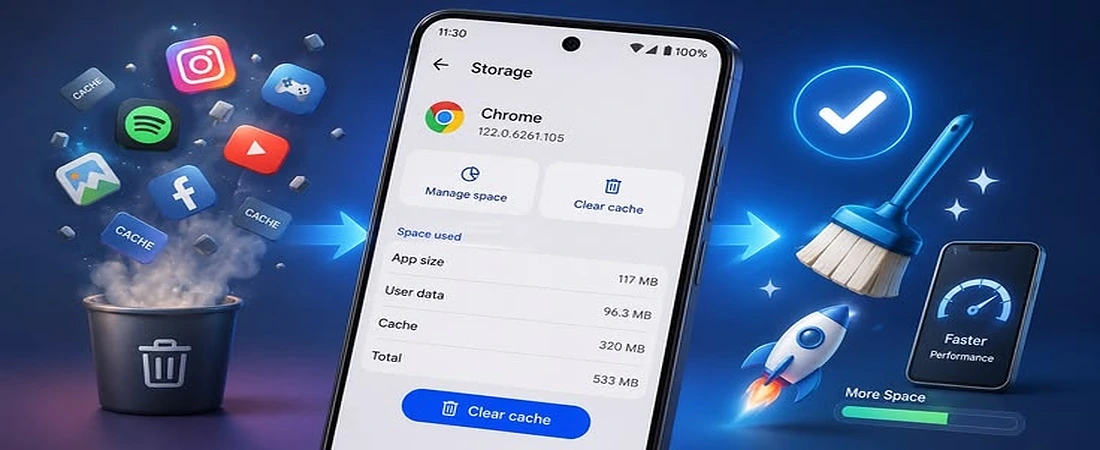
If an app on your Android phone is slow or keeps crashing then clearing its cache can be a simple thing to try.
Android apps save temporary files while you use them. These files can help apps load things faster. But sometimes cached files can become old or cause problems. Clearing the cache removes these temporary files and gives the app a fresh start.
If you want to clear cache on Android then the usual process is simple.
Open Settings and go to Apps. Select the app that is causing the problem. Tap Storage or Storage and cache. Then tap Clear cache.
The names can be a little different on different Android phones. Samsung and Google Pixel phones may show different menu names depending on the software version.
Quick Answer
To clear cache on Android follow these steps.
- Open Settings
- Tap Apps
- Select the app
- Tap Storage or Storage and cache
- Tap Clear cache
- Open the app again
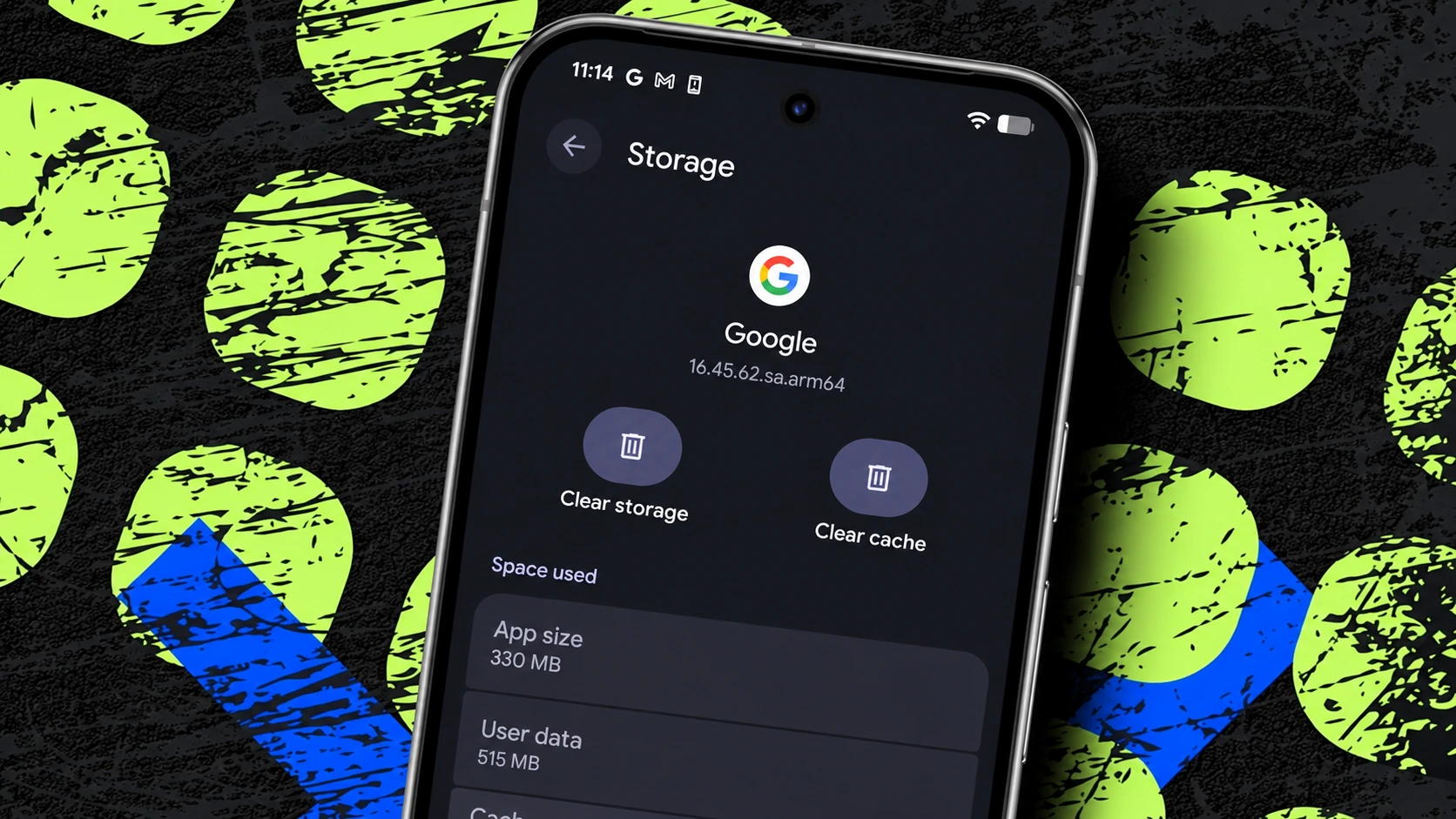
Make sure you tap Clear cache and not Clear storage or Clear data.
These options do different things.
What Is Cache on Android?
Cache is temporary information saved by apps on your phone.
For example an app may save images or other temporary files so it does not need to load everything again each time you open it.
This can make some parts of an app feel faster.
Cache is not normally something you need to worry about. It is a normal part of how apps work.
The problem can come when an app has old or damaged temporary files. In that situation clearing the cache can sometimes help.
Google explains that clearing an app cache removes temporary data. It also notes that some apps can take a little longer to open the first time after their cache has been cleared.
Key Takeaways
- Clearing cache removes temporary files and usually does not delete your personal data.
- The steps can vary depending on your Android phone and software version.
- Use Clear Cache when an app is slow or having minor issues.
- Avoid using Clear Data unless you understand that it can reset the app and remove stored information.
How to Clear Cache on Android
The easiest way to clear an app cache is through your phone settings.
Step 1: Open Settings
Open the Settings app on your Android phone.
Step 2: Open Apps
Look for Apps.
Some phones may use names such as Applications or App management.
Step 3: Select the App
Find the app that is having a problem.
For example you may want to clear the cache for Chrome. YouTube. Instagram. WhatsApp. Google Play Store or another app.
Step 4: Open Storage
After selecting the app look for Storage or Storage and cache.
Step 5: Tap Clear Cache
You should now see an option called Clear cache.
Tap it.
The cache size may change after you clear it.
Step 6: Open the App Again
Go back and open the app.
Check if the problem is fixed.
Google recommends clearing an app cache as one possible troubleshooting step when an app is not working correctly.
How to Clear Cache on Samsung Galaxy
Samsung Galaxy phones have a simple way to clear an individual app cache.
Open Settings.
Tap Apps.
Select the app.
Tap Storage.
Tap Clear cache.
Samsung says that the exact steps can vary depending on the software version and the app.
If your Samsung phone looks a little different then do not worry. Look for the app settings and then find the storage section.
How to Clear Cache on Google Pixel
On a Google Pixel phone you can usually go to:
Settings → Apps → See all apps → Select the app → Storage and cache → Clear cache
The exact wording can change with Android versions.
If you cannot find the option then search for the app inside your phone settings.

What Is the Difference Between Clear Cache and Clear Data?
This is very important.
Clear cache removes temporary files.
Clear data or Clear storage is much more serious.
When you clear an app’s data the app can be reset. Its saved settings and other stored information can be removed.
Google says that clearing storage permanently deletes all app data.
Samsung also warns that clearing app data resets the app to its original state and removes personal settings or data saved by that app.
So if you only want to remove temporary files then use Clear cache.
Do not tap Clear data just because you see it next to the cache option.
Does Clearing Cache Delete Photos?
Normally clearing an app cache does not delete your personal photos.
It removes temporary cached information.
However you should still be careful when using Clear storage or Clear data. Those options can remove information saved by the app.
If you have important information inside an app then make sure you understand what the storage option will remove before using it.
Does Clearing Cache Log You Out?
Clearing an app cache is different from deleting app data.
It is not the same as resetting the app.
Browser data can be different. For example deleting cookies in a browser can affect website sign ins and saved preferences.
So always check which type of data you are deleting.
When Should You Clear Cache on Android?
You do not need to clear your cache every day.
There is no need to make it a daily routine.
It can be useful when a particular app has a problem.
For example you can try to clear the cache when:
- An app keeps crashing
- An app freezes
- An app is very slow
- An app shows old content
- An app is not loading properly
- An app is taking a lot of storage
- An app starts acting strangely after an update
Google also explains that clearing cached data is only a short term storage solution because cached data can build up again.
How to Clear Chrome Cache on Android
If your problem is with websites then you may actually want to clear Chrome browsing data.
Open Chrome.
Tap the three dot menu.
Choose Delete browsing data.
Choose the time range.
Then select the type of data you want to remove.
If you only want to remove cached files then pay attention to the options you select.
Chrome can also delete browsing history and cookies. These are different from cached files.
Deleting cookies can affect website sign ins and saved preferences. So do not select extra options unless you want to remove them.
Can Clearing Cache Make Your Android Phone Faster?
Sometimes it can help with a specific app problem.
But it is not a magic way to make every Android phone faster.
If one app is slow or keeps crashing then clearing its cache can be worth trying.
If your whole phone is slow then the problem may be something else.
Your phone may have very little free storage. You may have an app that is causing problems. Your software may need an update. There can also be other reasons.
Google recommends checking storage and removing unnecessary files or apps when storage is low.
What If Clearing Cache Does Not Fix the Problem?
If the app still does not work then try a few other steps.
First close the app and open it again.
Then restart your phone.
Check if the app has an update available.
Also check how much free storage your phone has.
If the problem continues then you can try other troubleshooting steps.
You may eventually need to clear the app data or reinstall the app. But remember that clearing app data can reset the app and remove stored information.
If only one app has a problem and everything else works normally then contacting the app developer may also help.
Can You Clear Cache for All Apps at Once?
This depends on the phone and its software.
There is no single method that works in exactly the same way on every Android device.
For example Samsung says that clearing the cache for every app at the same time would require a factory reset on its Galaxy devices. A factory reset is not a normal cache cleaning method because it removes data from the phone.
You should never factory reset your phone just because you want to remove cached files.
If you need more storage then check your phone’s storage settings instead.
Common Mistakes to Avoid
One common mistake is choosing Clear data when you only wanted to clear the cache.
Another mistake is thinking every Android phone has the same settings.
The menu can look different on Samsung. Pixel. Motorola. OnePlus. Xiaomi and other phones.
Another mistake is clearing cache again and again when the real problem is something else.
Cache will normally build up again as you use the app. That is normal.
You also do not need to install a cleaner app just because your cache has grown.
Your Android phone already provides settings that can help you manage apps and storage.
Frequently Asked Questions
Is it safe to clear cache on Android?
Yes. Clearing an individual app cache is a normal troubleshooting step. It removes temporary data.
Does clearing cache delete photos?
Clearing an app cache is not intended to delete your personal photos.
Does clearing cache delete app data?
No. Clearing cache and clearing app data are different actions.
How often should I clear cache?
There is no fixed schedule. Clear it when you have a reason such as an app problem or a storage issue.
Does cache come back after I clear it?
Yes. Apps can create new cached files as you continue using them.
What if my app still does not work?
Restart the phone. Check for updates. Check your storage and try other troubleshooting steps.
Is Clear Data the same as Clear Cache?
No. Clear data can reset the app and remove information stored by it.
Conclusion
Knowing how to clear cache on Android can help when an app is acting strangely or when you want to remove some temporary files.
The normal process is simple.
Go to Settings.
Open Apps.
Select the app.
Open Storage or Storage and cache.
Then tap Clear cache.
Remember that Android phones can use different menu names. The process can also change with software updates.
Most importantly do not confuse Clear cache with Clear data or Clear storage.
Clear cache removes temporary information. Clear data can reset the app and remove information stored by it.
If clearing the cache does not fix the problem then move on to other troubleshooting steps instead of clearing it again and again.
Disclaimer
This article is for general informational purposes only. Android settings and menu names can vary by device and software version. Always review the option carefully before clearing app data or storage. For important apps or data you are unsure about it is best to check the app developer’s guidance first.