

Is your Android phone not as fast as it used to be? Maybe apps take longer to open. Maybe scrolling feels slow. Or your phone freezes for a few seconds when you try to do something simple.
The good news is that you do not always need a new phone.There are several simple things you can try if you want to know how to make Android phone faster. Some fixes take only a few minutes. Others need a little more checking.The main thing is to find out what is making the phone slow before changing too many settings.
Quick Answer
If you want to know how to make Android phone faster start with these steps:
- Restart your phone
- Check for Android updates
- Update your apps
- Check your free storage
- Remove files you do not need
- Uninstall unused apps
- Check for apps causing problems
- Clear the cache of a problem app
- Check if your phone is overheating
- Try advanced troubleshooting if the problem continues
Google also recommends restarting the device. Checking for updates. Checking storage. Troubleshooting apps and using a factory reset only as an advanced step.
Why Is Your Android Phone Slow?
There is no single reason why an Android phone becomes slow.Your phone may have very little free storage. One app may be causing trouble. Your software may need an update. The phone may be getting too hot. Or the hardware may simply be getting old.Sometimes the phone is not even slow.Your internet connection may be the real problem.
For example if YouTube keeps buffering that does not automatically mean your phone is slow. But if your settings menu is lagging or offline apps are taking too long to open then the phone itself may need attention.
So before looking for how to make Android phone faster it helps to understand what kind of slowdown you are seeing.
1. Restart Your Android Phone
This sounds too simple but it is worth trying first.A restart gives Android a fresh start. It can also help with temporary problems that build up during normal use.Google lists restarting as one of the first steps for a slow Android device.Press and hold the power button. Then choose Restart if your phone shows that option.
After the phone starts again use it normally for a few minutes.If everything feels better then you may not need to do anything else.If the phone becomes slow again soon after restarting then continue with the next steps.
2. Check for Android Updates
Old software can sometimes cause problems with apps and the system.Open Settings and look for System or Software update.
The exact menu can be different on Samsung. Pixel. Motorola. OnePlus and other Android phones.If an update is available install it when you have enough battery and a stable internet connection.
An update is not a magic way to make every phone faster. But keeping supported software up to date can help with bugs and compatibility problems.
3. Update Your Apps
If only one or two apps are slow then the app itself could be the problem.
Open the Google Play Store and check for updates.
Pay special attention to apps that:
- Freeze often
- Take a long time to open
- Crash
- Started causing problems recently
- Use a lot of battery or data
Google recommends checking app updates when troubleshooting Android performance problems.
If the whole phone is slow then updating every app may not solve everything. But it is still a useful step.
4. Check Your Phone Storage
This is one of the most important things to check when learning how to make Android phone faster.
Open Settings and find Storage.
Look at how much space is available.Google says Android phones can start having problems when less than 10% of storage is free.That does not mean your phone will suddenly become slow at exactly 10%.It simply gives you a useful warning point.If your phone is almost full then free some space before trying more advanced fixes.
5. Delete Things You Do Not Need
Look through your phone and remove files you no longer use.
Good places to check include:
- Downloads
- Large videos
- Old screenshots
- Duplicate photos
- Offline videos
- Large files
- Apps you forgot about
Be careful with personal files.
Do not delete something important just because you do not recognize the file name.
Android also provides built in storage tools that can help you find files and apps taking up space.
6. Remove Apps You Never Use
Most people have apps installed that they stopped using months ago.If you do not need an app anymore then uninstalling it can free storage.
It also removes the app from your phone so it cannot use its normal app resources.You do not need to uninstall every app.Just look for apps you genuinely do not use.
7. Find the App That Is Causing the Problem
Sometimes the phone is not slow.One app is slow.
This is an important difference.Imagine Chrome works normally. Your settings work normally. Your camera works normally. But one game freezes every few minutes.In that case you should troubleshoot the game.
Try updating it first.Then restart your phone.If the problem continues you can try clearing that app’s cache or reinstalling it.
Google also recommends using Safe Mode when you suspect a downloaded app is causing a wider problem. Safe Mode temporarily turns off downloaded apps.
8. Clear the Cache of a Problem App
You may have heard that clearing cache can make every Android phone faster.It is not that simple.Cache is temporary data that apps store to help them work efficiently.Clearing the cache can sometimes help when one app is behaving badly.
But there is no need to clear every app’s cache every day.In fact Google notes that after clearing an app cache the app may be slower the next time you open it because temporary data needs to be created again.
So use this as a troubleshooting step.Not as a daily cleaning routine.
9. Check If Your Phone Is Getting Too Hot
Heat can also be a clue.Maybe your phone becomes slow when you are gaming. Or when you record lots of video. Or when you use demanding apps for a long time.
If the phone is very hot then stop the demanding task for a while and let it cool down.Also check whether the phone becomes hot even when you are doing very little.If that happens often then you may need to investigate a specific app or contact the phone manufacturer.
10. Try Reducing Animations
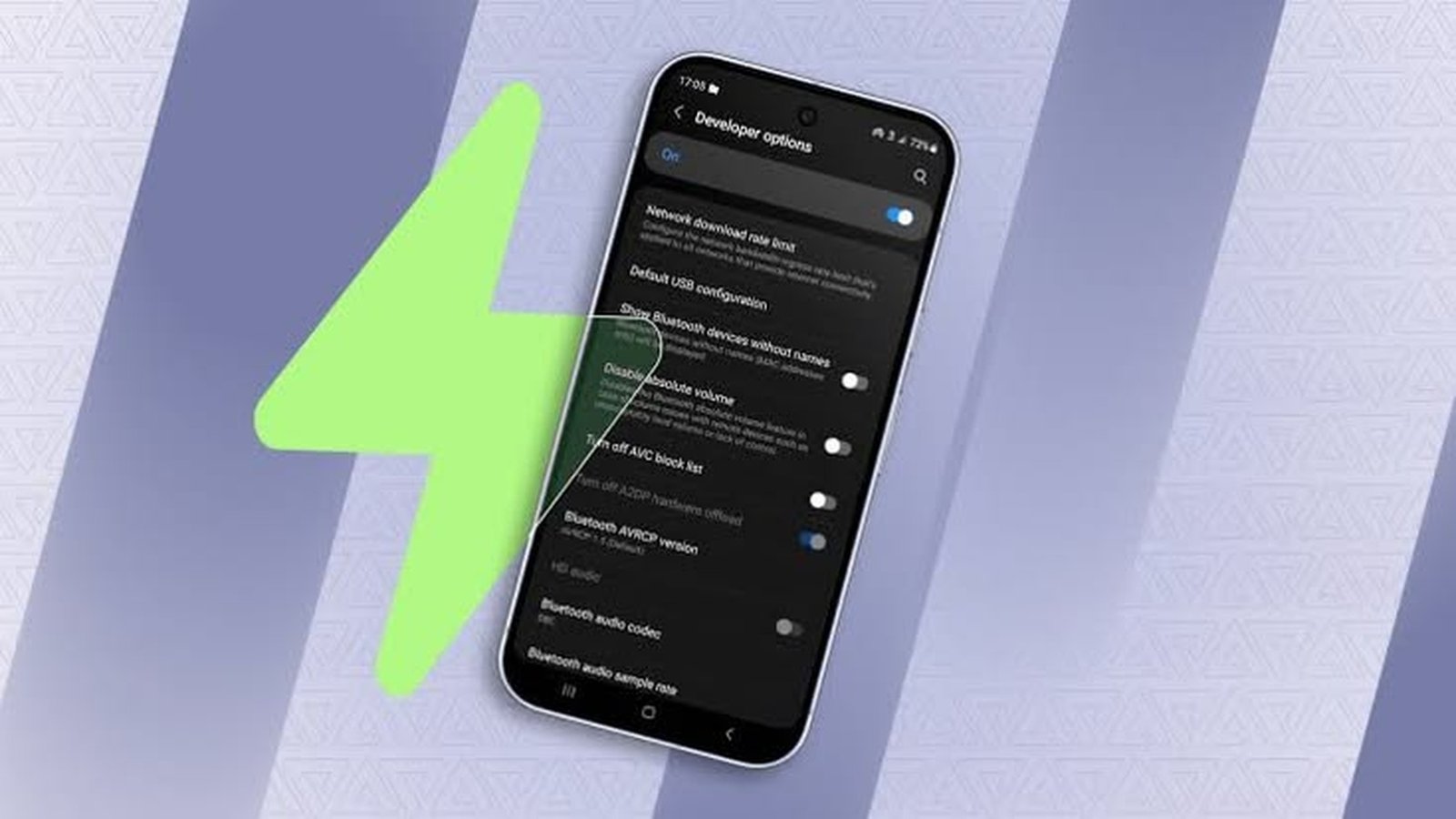
Android has animation settings that control things like window and transition animations.You can access these through Developer Options on supported devices.Android’s developer documentation says that lowering the animation scale makes animations play faster.
This does not make your processor more powerful.It simply makes the interface feel quicker because animations finish sooner.If you like a snappier interface then this can be worth trying.If you are not comfortable with Developer Options then skip this step. You do not need it to improve your phone.
What About RAM Cleaner Apps?
Be careful with apps that promise to make your phone dramatically faster with one tap.Instead of asking which cleaner app you should install ask what is actually causing the slowdown.If storage is full then free storage.If one app is causing trouble then fix that app.If the phone is overheating then deal with the heat.
If the hardware is old then a cleaner app cannot turn an old processor into a new one.Android already manages memory and Google says you do not usually need to close apps. If an app is not responding you can try closing or force stopping that specific app.
How to Make an Old Android Phone Faster
If you have an older Android phone you can still improve the experience.Start with the basics.Remove apps you never use.Free some storage.Keep supported software updated.Check for apps causing problems.Avoid unnecessary background activity.
You can also reduce animations if you want the interface to feel quicker.But there is a limit.If the hardware is old then software tricks cannot completely remove that limitation.A phone with older hardware may simply struggle with newer and more demanding apps.That does not mean you should replace it immediately.It just means you should have realistic expectations.
Should You Factory Reset Your Android Phone?
A factory reset should not be your first step.It can help when you have persistent software problems and normal troubleshooting has not worked.
But there is a big warning.A factory reset removes data from the phone. Apps and their associated data are also removed. Google recommends trying other solutions first and backing up your phone before doing a reset.Before resetting make sure you know your Google Account details.Back up important photos.Back up important documents.Check your contacts.Make sure you know your screen lock information.
After the reset do not immediately install every app you have ever used.Install the important ones first.Then see how the phone behavesIf it becomes slow again after installing one particular app then you may have found the problem.
Phone Slow or Internet Slow?
This is an easy mistake to make.
If websites are slow to load then check your internet connection.If YouTube keeps buffering then check your Wi Fi or mobile data.If offline apps are also lagging then the phone itself is more likely to be the problem.
Here is a simple way to think about it:
| Problem | Check First |
|---|---|
| YouTube keeps buffering | Internet |
| Websites load slowly | Internet |
| Offline apps lag | Phone |
| Settings menu feels slow | Phone |
| One app freezes | That app |
| Phone gets very hot | Heat and workload |
Google also separates connection troubleshooting from troubleshooting the phone itself.
When Software Fixes Are Not Enough
Sometimes you can do everything correctly and the phone will still feel slow.
That can happen when the hardware is getting old.Look at the bigger picture.Is the phone several years old?Does it struggle with apps that used to run fine?Does it get hot often?Does it remain slow even after reasonable troubleshooting?
If yes then the problem may not be something you can solve with a setting.This is where it is better to accept the hardware limit rather than keep installing apps that promise impossible results.
Quick Android Speed Checklist
Before you consider a factory reset or buying another phone check these things:
- Restart the phone
- Check Android updates
- Update your apps
- Check storage
- Free unnecessary space
- Remove unused apps
- Look for a problem app
- Clear cache for a problem app when needed
- Check for overheating
- Test your internet connection
- Try Safe Mode if an app may be responsible
- Back up your data before a factory reset
Final Thoughts
If you came here searching for how to make Android phone faster the best answer is not one secret setting.
Start simple.
Restart the phone.
Check storage.
Update Android.
Update your apps.
Look for the app causing the problem.
Then move toward more advanced troubleshooting if you still have trouble.The biggest mistake is trying random tricks without knowing what is actually wrong.Once you find the cause the solution is usually much easier.And if your phone is simply getting old then remember this too.You can optimize an old Android phone.But you cannot turn old hardware into new hardware.